
Reliable USB4 Cable: What You Need to Know Before Buying
2026-10-16
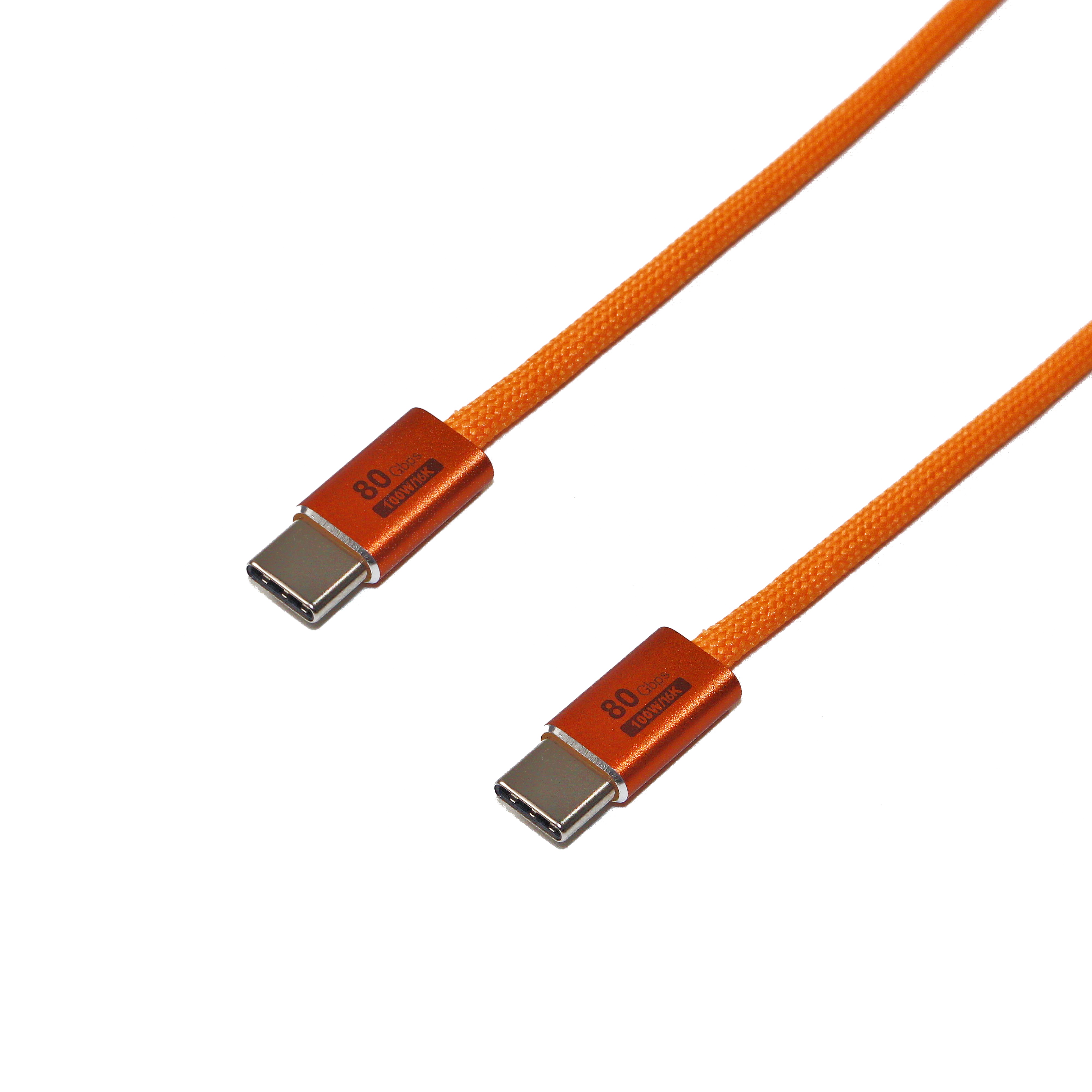
Choosing a USB4 cable shouldn’t feel like a gamble. Yet with so many options claiming high speeds and 8K support, it’s easy to end up with a dud that throttles your data or can’t handle your display. Before you click buy, there are a few non-negotiable specs and real-world warnings worth checking. At EBCYX, we cut through the confusion to help you pick a cable that actually delivers on its promises.
Not Every USB-C Cable Is USB4
The USB-C connector has become incredibly common, but its shape alone tells you almost nothing about what the cable can actually do. A staggering number of USB-C cables on the market are wired only for USB 2.0 speeds—480 Mbps—and often lack the high-speed data lanes required for modern protocols. Plug one of these into a USB4 port and you'll likely be stuck with sluggish transfers, even though both ends fit perfectly.
USB4 demands a lot more from the cable itself. To support 20 Gbps or 40 Gbps, the cable needs multiple shielded differential pairs, proper impedance control, and an E-marker chip that identifies its capabilities to the host. Cheap, thin cables frequently skip these components to cut costs. As a result, the USB4 controller may fail to negotiate a high-speed link, silently falling back to USB 3.2 or even USB 2.0, leaving you wondering why your external SSD isn't hitting its rated speeds.
So before you grab any random USB-C cable for a USB4 device, check what's printed on the packaging or the cable jacket. Look for explicit USB4 certification, a "40 Gbps" rating, or at least a mention of "full-featured" wiring. Also keep length in mind: passive cables that handle USB4 tops out around 0.8 to 1 meter, while longer runs typically require active cables with built-in signal boosters. The connector may be universal, but the cable inside is anything but.
Certification Logos You Should Actually Trust
Not every badge on a product box means something. Some are slapped on by marketing teams with no real testing behind them. But a handful of certification marks actually point to independent, rigorous verification. Knowing which ones hold weight can save you from buying into empty promises.
Start with marks backed by nonprofit or government bodies that publish their standards. For electronics, look for UL or ETL listing—both mean the product passed safety tests in accredited labs. For organic food, the USDA Organic seal requires annual inspections and a paper trail from farm to shelf. These aren't paid-for stickers; they involve ongoing audits.
Then there are niche marks that matter in specific categories. OEKO-TEX Standard 100 tells you textiles were tested for harmful substances. Energy Star indicates a device meets strict efficiency criteria set by the EPA. The key is checking who runs the program and whether they make test results public. If a logo can't be traced back to a standard document, it's probably just decoration.
Cable Length Affects Speed More Than You Think
Many people assume a longer Ethernet cable just adds a tiny bit of latency, not enough to matter. In practice, the copper pairs inside a Cat5e or Cat6 cable are fighting resistance and crosstalk over every extra meter. Push a run past 90 meters of solid-core cable, and you might start seeing dropped frames, renegotiated link speeds, or a connection that falls back from gigabit to 100 Mbps without any obvious warning. The effect is not always a hard cutoff—it shows up as intermittent slowdowns that get blamed on the router or the ISP.
Another overlooked factor is how cable length interacts with the surrounding environment. A longer cable picks up more electromagnetic interference from power lines, fluorescent lighting, and bundled cables, which eats into the signal integrity. That means a 50-meter cable running next to a mains conduit can feel slower than a 100-meter cable in a clean ceiling void. The rated maximums are based on ideal conditions, but real homes and offices are rarely ideal.
Short patch cables can also cause trouble if you coil them tightly. The loops create a small electromagnetic field that increases near-end crosstalk, especially on unshielded cables. So the rule isn't simply 'shorter is always better'—it's about matching the cable length to the run and keeping the path as clean as possible. If you're chasing a stable multi-gigabit link, measure the actual distance and leave a little headroom instead of buying the longest reel just because it's cheaper per meter.
Power Delivery and Data Speed Are Separate Specs
A common misconception is that a cable labeled with a high wattage rating automatically delivers fast data transfer. In reality, power delivery and data speed are governed by entirely different specifications. A USB-C cable might support 100W charging while only handling USB 2.0 data rates, or vice versa—blazing-fast 40Gbps data with a modest 60W power limit. The two capabilities don’t influence each other, so checking both separately is essential before buying.
The confusion often stems from marketing that bundles numbers together. A cable advertised as “240W” refers solely to its power handling, not its data throughput. Meanwhile, Thunderbolt 4 or USB4 cables guarantee certain data speeds but have their own power delivery minimums. Since cables contain separate wire pairs and chips for power versus data, a beefy power rating tells you nothing about whether it can drive a 4K monitor or transfer large files quickly.
To avoid disappointment, treat the two specs as independent checkboxes. First, confirm the wattage your devices need for charging. Then, look at the data standard—USB 3.2, USB4, or Thunderbolt—to match your transfer or display requirements. Only when both boxes are ticked does a cable truly fit your setup.
Shielding Is the Invisible Feature
When you look at a circuit board, the shiny metal cans and foil tapes rarely draw attention. They sit quietly over chips and connectors, doing a job nobody sees. That job is shielding—blocking electromagnetic interference so signals stay clean. Without it, your phone might drop calls or your car's sensors could misread the road. It's the kind of engineering that only becomes visible when it fails.
Think about the last time a device worked perfectly for years. You never once thought about the shield gaskets around the display or the conductive coating inside the plastic case. Those components don't have marketing names or feature bullet points. They simply exist, absorbing and redirecting stray energy. And that's the point: the best shielding is the one you never have to think about, because it never lets the problem reach you.
Your Laptop Port May Limit the Cable
A USB-C port is not a guarantee of speed. The physical connector may be identical across several years of laptops, but the underlying standard can range from USB 3.2 Gen 1 at 5 Gbps to USB4 or Thunderbolt 4 at 40 Gbps. If your laptop's port maxes out at 10 Gbps, plugging in a cable rated for 40 Gbps won't magically speed up transfers. That top-tier cable simply goes unused beyond the port's own ceiling.
The same applies to video. Many laptops route DisplayPort signals through USB-C, but the supported version matters enormously. An older port might only provide DisplayPort 1.2, which can struggle with 4K at 60 Hz over a single cable. A newer port with DisplayPort 1.4 or 2.0 can handle higher resolutions and refresh rates. Before blaming the cable for flickering or limited refresh options, check what your laptop's port actually advertises.
Even with Thunderbolt, there can be surprises. A Thunderbolt 3 port from 2016 may offer the same 40 Gbps as Thunderbolt 4, but it might reserve less power delivery or lack support for certain daisy-chaining features. So when you're shopping for cables, look up the exact port spec on your model—not just the connector type. The cable can only be as good as the weakest port in the chain.
FAQ
A reliable USB4 cable has proper shielding to prevent crosstalk at 40Gbps, an e-marker chip that tells the host its capabilities, and connectors that can handle repeated plug cycles. Cheap cables often skip the e-marker or use too-thin conductors, so they fall back to USB 2.0 speeds or drop the signal entirely.
No. USB4 needs a cable rated for either 20Gbps or 40Gbps. Many older USB-C cables only support 10Gbps or 5Gbps, and some only carry power. Even a 40Gbps passive cable has a length limit of 0.8 meters; longer runs need an active cable with a built-in signal booster.
For passive cables, 40Gbps tops out at 0.8 meters. Go longer and the signal degrades enough that the link may drop to 20Gbps or fail. Active cables can stretch to 2 meters or more but they usually draw power and may not support every USB4 feature, so check the manufacturer's spec sheet.
Look for the USB-IF certified logo that says 'USB4 40Gbps' or 'USB4 20Gbps' on the packaging or the cable itself. That means it passed interoperability tests. Uncertified cables often print 'USB4' without the speed rating, which is a red flag.
They overlap but aren't identical. A Thunderbolt 4 cable is always USB4 compliant and usually supports the full 40Gbps, video, and 100W charging. A USB4 cable, however, might not meet Thunderbolt 4's stricter requirements for dual 4K displays or PCIe data. If you only need USB4 features, a USB4 cable is fine; for Thunderbolt docks or eGPUs, buy a Thunderbolt 4 cable.
Most USB4 cables support USB Power Delivery at 60W or 100W, but some cheap ones top out at 20V/3A (60W). If your laptop needs more than 60W, look for a cable explicitly marked for 100W or 240W (EPR). The e-marker chip also has to advertise that power capability, so unmarked cables are a gamble.
Frequent USB disconnects when you bump the cable, only getting USB 2.0 speeds despite a 40Gbps label, no display output when connected to a monitor, hot connectors during data transfer, or a flimsy strain relief. All of those suggest missing shielding, no e-marker, or poor soldering.
The cheap ones typically skip USB-IF certification, use thinner wire gauge that can't sustain 40Gbps, omit the e-marker, or only support 20Gbps. Pricier cables have thicker conductors, better shielding, certified chips, and sometimes active retimers for longer lengths. You pay for guaranteed performance instead of a lottery.
Conclusion
Shopping for a USB4 cable often feels like a gamble because the connector shape tells you almost nothing about what's inside. A USB-C plug can carry anything from slow USB 2.0 to full 40 Gbps USB4, so the first rule is to ignore the port's looks and check the actual cable specification. Look for the USB-IF certification logo with the correct speed rating—genuine logos are your best shortcut past fake marketing. Even then, the details can trip you up. Cable length is a silent spec killer: passive cables longer than about 0.8 meters typically drop from 40 Gbps to 20 Gbps, so if you need distance, you'll need an active cable, which costs more and draws power. Shielding matters too, especially at these frequencies. Poor shielding might not show up in a quick file transfer, but it causes random disconnects, flickering external displays, or slow fallback speeds in electrically noisy rooms.
Another common mistake is treating power delivery and data speed as one number. A cable rated for 240 W charging might only handle USB 2.0 data, which is fine for a charger but useless for a dock. Before buying, check both ratings separately. And don't forget the host side: your laptop or tablet's USB4 port may be capped at 20 Gbps or share bandwidth with other ports, so even a perfect cable won't exceed what the device allows. If you want a reliable setup, match the cable to your actual worst bottleneck—the port, the cable length, the shielding environment—not just the highest number on the box. Buying from brands that clearly list the certified speed and wattage, and avoiding no-name cables that only say "USB4 compatible," saves you from returns and mysterious performance drops. In short, a reliable USB4 cable is one whose specs you can verify, not one whose packaging looks fast.
Contact Us
Contact Person: David Yang
Email: [email protected]
Tel/WhatsApp: 8615814734054
Website: https://www.ebcyx.com/